Brighten or Darken Specific Parts of an Image
Brighten or darken images online for free. Adjust brightness or darkness of the whole image or manually darken or brighten parts of the photos with dodge and burn brushes. Vignette effect slider. No AI, no watermark, no limits.
Our Brighten or Darken Image Online Free Tool uses asymptotic light-addition algorithms to ensure highlights never look flat and shadows stay rich and full of color, similar to professional darkroom editing. The tool is useful for correcting uneven lighting, brightening faces, darkening backgrounds, enhancing contrast, and drawing attention to the main subject of a photo.
Vignette Effect
Use our Vignette slider to darken the corners and edges of your photo and make the center stay highlighted. It helps bring focus to faces, objects, or anything important in the middle of the image. Perfect for creating depth in your images directly in your browser.
The Darken (Burn) Brush

Use the darken brush to reduce brightness in selected areas. This tool can deepen shadows or create a subtle vignette effect around the edges of your photo, which pushes the background away and keeps the viewer's focus on the center.
Professional photographers often darken the background around the main subject to increase contrast and visual separation. For example, wildlife photographs of animals such as lions or cheetahs are often taken against beige environments where the subject blends into the background. By darkening the background and highlighting the animal, photographers improve depth, contrast, and visual focus.
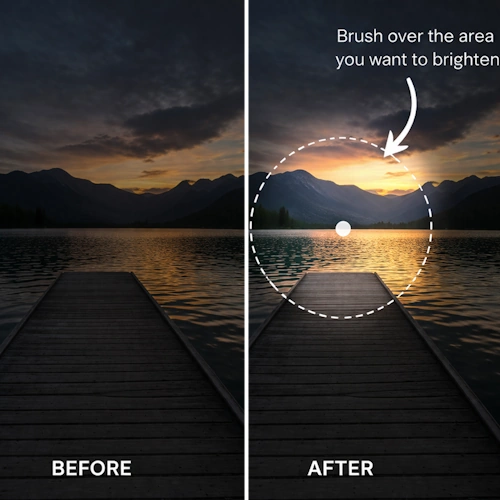
The Brighten (Dodge) Brush

Use the brighten brush to highlight specific parts of a subject, such as the bridge of a nose, the tops of cheekbones, or the edges of a product. This technique naturally guides the viewer's attention to the most important parts of the image.

The brighten brush can also be used to lighten faces, objects, or important details that appear too dark, helping restore balance to photos with uneven lighting.